 |
Now with Expo support |
|---|



The most sophisticated background location-tracking & geofencing module with battery-conscious motion-detection intelligence for iOS and Android.
The plugin's Philosophy of Operation is to use motion-detection APIs (using accelerometer, gyroscope and magnetometer) to detect when the device is moving and stationary.
-
When the device is detected to be moving, the plugin will automatically start recording a location according to the configured
distanceFilter(meters). -
When the device is detected be stationary, the plugin will automatically turn off location-services to conserve energy.
Also available for Flutter, Cordova, NativeScript and pure native apps.
Note
The Android module requires purchasing a license. However, it will work for DEBUG builds. It will not work with RELEASE builds without purchasing a license. This plugin is supported full-time and field-tested daily since 2013.

-
😫 Help!
npx expo install react-native-background-geolocationyarn add react-native-background-geolocation$ npm install react-native-background-geolocation --save
-
Login to Customer Dashboard to generate an application key: www.transistorsoft.com/shop/customers
-
Add your license-key to
android/app/src/main/AndroidManifest.xml:

<manifest xmlns:android="http://schemas.android.com/apk/res/android"
    package="com.transistorsoft.backgroundgeolocation.react">

  <application
    android:name=".MainApplication"
    android:allowBackup="true"
    android:label="@string/app_name"
    android:icon="@mipmap/ic_launcher"
    android:theme="@style/AppTheme">

    <!-- react-native-background-geolocation licence -->
+     <meta-data android:name="com.transistorsoft.locationmanager.license" android:value="YOUR_LICENCE_KEY_HERE" />
    .
    .
    .
  </application>
</manifest>import BackgroundGeolocation from "react-native-background-geolocation";Typescript API:
For those using Typescript (recommended), you can also import the interfaces:
import BackgroundGeolocation, {
  State,
  Config,
  Location,
  LocationError,
  Geofence,
  GeofenceEvent,
  GeofencesChangeEvent,
  HeartbeatEvent,
  HttpEvent,
  MotionActivityEvent,
  MotionChangeEvent,
  ProviderChangeEvent,
  ConnectivityChangeEvent
} from "react-native-background-geolocation";
For more information, see this blog post
There are three main steps to using BackgroundGeolocation
- Wire up event-listeners.
.ready(config)the plugin..start()the plugin.
Warning
Do not execute any API method which will require accessing location-services until the .ready(config) method resolves (Read its API docs), For example:
.getCurrentPosition.watchPosition.start
// NO!  .ready() has not resolved.
BackgroundGeolocation.getCurrentPosition(options);
BackgroundGeolocation.start();

BackgroundGeolocation.ready(config).then((state) => {
  // YES -- .ready() has now resolved.
  BackgroundGeolocation.getCurrentPosition(options);
  BackgroundGeolocation.start();
});

// NO!  .ready() has not resolved.
BackgroundGeolocation.getCurrentPosition(options);
BackgroundGeolocation.start();Show Source
import React from 'react';
import {
  Switch,
  Text,
  View,
} from 'react-native';

import BackgroundGeolocation, {
  Location,
  Subscription
} from "react-native-background-geolocation";

const HelloWorld = () => {
  const [enabled, setEnabled] = React.useState(false);
  const [location, setLocation] = React.useState('');

  React.useEffect(() => {
    /// 1.  Subscribe to events.
    const onLocation:Subscription = BackgroundGeolocation.onLocation((location) => {
      console.log('[onLocation]', location);
      setLocation(JSON.stringify(location, null, 2));
    })

    const onMotionChange:Subscription = BackgroundGeolocation.onMotionChange((event) => {
      console.log('[onMotionChange]', event);
    });

    const onActivityChange:Subscription = BackgroundGeolocation.onActivityChange((event) => {
      console.log('[onActivityChange]', event);
    })

    const onProviderChange:Subscription = BackgroundGeolocation.onProviderChange((event) => {
      console.log('[onProviderChange]', event);
    })

    /// 2. ready the plugin.
    BackgroundGeolocation.ready({
      // Geolocation Config
      desiredAccuracy: BackgroundGeolocation.DESIRED_ACCURACY_HIGH,
      distanceFilter: 10,
      // Activity Recognition
      stopTimeout: 5,
      // Application config
      debug: true, // <-- enable this hear sounds for background-geolocation life-cycle.
      logLevel: BackgroundGeolocation.LOG_LEVEL_VERBOSE,
      stopOnTerminate: false,   // <-- Allow the background-service to continue tracking when user closes the app.
      startOnBoot: true,        // <-- Auto start tracking when device is powered-up.
      // HTTP / SQLite config
      url: 'http://yourserver.com/locations',
      batchSync: false,       // <-- [Default: false] Set true to sync locations to server in a single HTTP request.
      autoSync: true,         // <-- [Default: true] Set true to sync each location to server as it arrives.
      headers: {              // <-- Optional HTTP headers
        "X-FOO": "bar"
      },
      params: {               // <-- Optional HTTP params
        "auth_token": "maybe_your_server_authenticates_via_token_YES?"
      }
    }).then((state) => {
      setEnabled(state.enabled)
      console.log("- BackgroundGeolocation is configured and ready: ", state.enabled);
    });

    return () => {
      // Remove BackgroundGeolocation event-subscribers when the View is removed or refreshed
      // during development live-reload.  Without this, event-listeners will accumulate with
      // each refresh during live-reload.
      onLocation.remove();
      onMotionChange.remove();
      onActivityChange.remove();
      onProviderChange.remove();
    }
  }, []);

  /// 3. start / stop BackgroundGeolocation
  React.useEffect(() => {
    if (enabled) {
      BackgroundGeolocation.start();
    } else {
      BackgroundGeolocation.stop();
      setLocation('');
    }
  }, [enabled]);

  return (
    <View style={{alignItems:'center'}}>
      <Text>Click to enable BackgroundGeolocation</Text>
      <Switch value={enabled} onValueChange={setEnabled} />
      <Text style={{fontFamily:'monospace', fontSize:12}}>{location}</Text>
    </View>
  )
}

export default HelloWorld;Show Source
import React from 'react';
import {
  Switch,
  Text,
  View,
} from 'react-native';

import BackgroundGeolocation, {
  Location,
  Subscription
} from "react-native-background-geolocation";

export default class HelloWorld extends React.Component {
  subscriptions:Subscription[] = [];
  state:any = {};
  constructor(props:any) {
    super(props);
    this.state = {
      enabled: false,
      location: ''
    }
  }

  componentDidMount() {
    /// 1.  Subscribe to BackgroundGeolocation events.
    this.subscriptions.push(BackgroundGeolocation.onLocation((location) => {
      console.log('[onLocation]', location);
      this.setState({location: JSON.stringify(location, null, 2)})
    }, (error) => {
      console.log('[onLocation] ERROR:', error);
    }))

    this.subscriptions.push(BackgroundGeolocation.onMotionChange((event) => {
      console.log('[onMotionChange]', event);
    }))

    this.subscriptions.push(BackgroundGeolocation.onActivityChange((event) => {
      console.log('[onActivityChange]', event);
    }))

    this.subscriptions.push(BackgroundGeolocation.onProviderChange((event) => {
      console.log('[onProviderChange]', event);
    }))

    /// 2. ready the plugin.
    BackgroundGeolocation.ready({
      // Geolocation Config
      desiredAccuracy: BackgroundGeolocation.DESIRED_ACCURACY_HIGH,
      distanceFilter: 10,
      // Activity Recognition
      stopTimeout: 5,
      // Application config
      debug: true, // <-- enable this hear sounds for background-geolocation life-cycle.
      logLevel: BackgroundGeolocation.LOG_LEVEL_VERBOSE,
      stopOnTerminate: false,   // <-- Allow the background-service to continue tracking when user closes the app.
      startOnBoot: true,        // <-- Auto start tracking when device is powered-up.
      // HTTP / SQLite config
      url: 'http://yourserver.com/locations',
      batchSync: false,       // <-- [Default: false] Set true to sync locations to server in a single HTTP request.
      autoSync: true,         // <-- [Default: true] Set true to sync each location to server as it arrives.
      headers: {              // <-- Optional HTTP headers
        "X-FOO": "bar"
      },
      params: {               // <-- Optional HTTP params
        "auth_token": "maybe_your_server_authenticates_via_token_YES?"
      }
    }).then((state) => {
      this.setState({enabled: state.enabled});
      console.log("- BackgroundGeolocation is configured and ready: ", state.enabled);
    })
  }

  /// When view is destroyed (or refreshed during development live-reload),
  /// remove BackgroundGeolocation event subscriptions.
  componentWillUnmount() {
    this.subscriptions.forEach((subscription) => subscription.remove());
  }

  onToggleEnabled(value:boolean) {
    console.log('[onToggleEnabled]', value);
    this.setState({enabled: value})
    if (value) {
      BackgroundGeolocation.start();
    } else {
      this.setState({location: ''});
      BackgroundGeolocation.stop();
    }
  }

  render() {
    return (
      <View style={{alignItems:'center'}}>
        <Text>Click to enable BackgroundGeolocation</Text>
        <Switch value={this.state.enabled} onValueChange={this.onToggleEnabled.bind(this)} />
        <Text style={{fontFamily:'monospace', fontSize:12}}>{this.state.location}</Text>
      </View>
    )
  }
}The BackgroundGeolocation Javascript API supports Promises for nearly every method (the exceptions are #watchPosition and adding event-listeners via #onXXX method (eg: onLocation). For more information, see the API Documentation
BackgroundGeolocation.ready({
  desiredAccuracy: BackgroundGeolocation.DESIRED_ACCURACY_HIGH,
  distanceFilter: 50
}).then(state => {
  console.log('- BackgroundGeolocation is ready: ', state);
}).catch(error => {
  console.warn('- BackgroundGeolocation error: ', error);
});

// Or use await in an async function
try {
  const state = await BackgroundGeolocation.ready({
    desiredAccuracy: BackgroundGeolocation.DESIRED_ACCURACY_HIGH,
    distanceFilter: 50
  })
  console.log('- BackgroundGeolocation is ready: ', state);
} catch (error) {
  console.warn('- BackgroundGeolocation error: ', error);
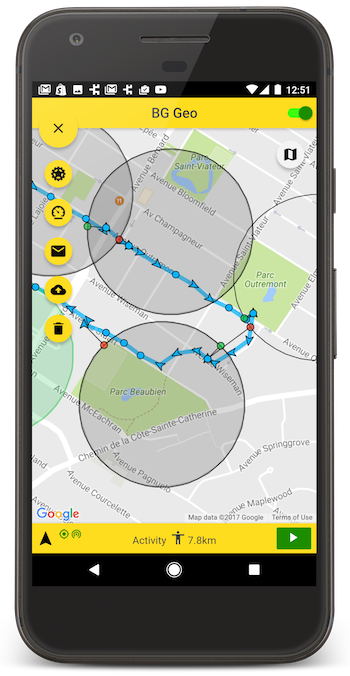
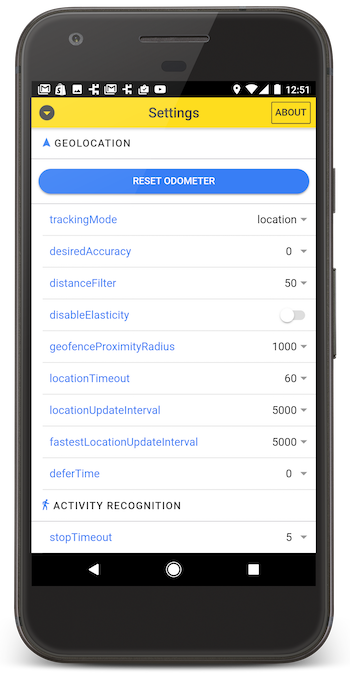
}A fully-featured Demo App is available in its own public repo. After first cloning that repo, follow the installation instructions in the README there. This demo-app includes a settings-screen allowing you to quickly experiment with all the different settings available for each platform.
A simple Node-based