This product is not supported for your selected Datadog site. ().
Join the Preview!
The Datadog MCP Server is in Preview. There is no charge for using the Datadog MCP Server during the Preview, but pricing may change when the feature becomes generally available. If you're interested in the MCP server and need access, complete this form.
This page explains how to set up and configure the Datadog MCP Server, which lets you query and retrieve observability insights directly from AI-powered clients such as Cursor, OpenAI Codex, Claude Code, or your own AI agent.
Client compatibility
The following AI clients are known to be compatible with the Datadog MCP Server.
The Datadog MCP Server is under significant development, and additional supported clients may become available.
Datadog’s Cursor and VS Code extension includes built-in access to the managed Datadog MCP Server. Benefits include:
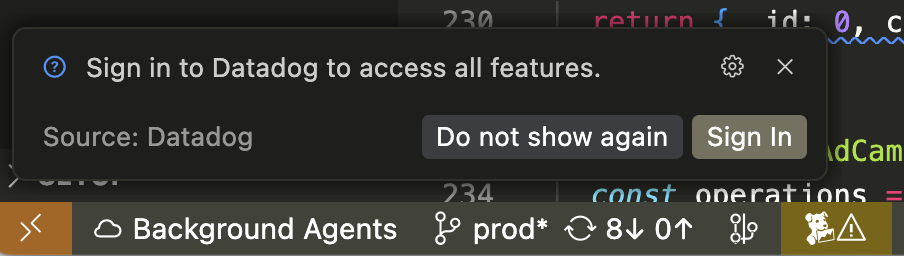
No additional MCP Server setup after you install the extension and connect to Datadog.
One-click transitions between multiple Datadog organizations.
[Cursor only] Better fixes from Fix in Chat on Code Insights (issues from Error Tracking, Code Vulnerabilities, and Library Vulnerabilities), informed by context from the MCP Server.
To install the extension:
If you previously installed the Datadog MCP Server manually, remove it from the IDE’s configuration to avoid conflicts. To find the MCP Server configuration:
Cursor: Go to Cursor Settings (Shift + Cmd/Ctrl + J) and select the MCP tab.
VS Code: Open the command palette (Shift + Cmd/Ctrl + P) and run MCP: Open User Configuration.
Install the Datadog extension following these instructions. If you have the extension installed already, make sure it’s the latest version, as new features are released regularly.
Sign in to your Datadog account. If you have multiple accounts, use the account included in your Product Preview.
Restart the IDE.
Confirm the Datadog MCP Server is available and the tools are listed in your IDE:
Cursor: Go to Cursor Settings (Shift + Cmd/Ctrl + J), and select the MCP tab.
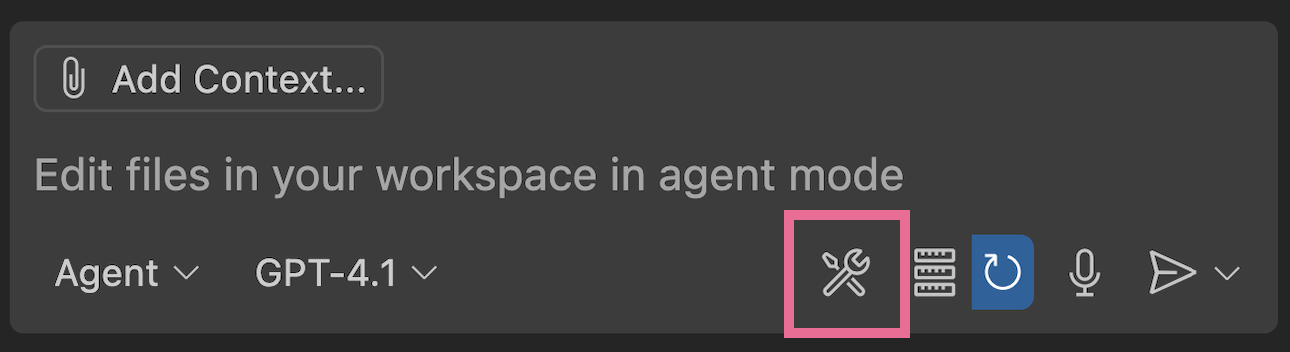
VS Code: Open the chat panel, select agent mode, and click the Configure Tools button.
Connect in other AI clients
The following instructions are for all [MCP-compatible clients][21]. For Cursor or VS Code, use the Datadog extension for built-in access to the Datadog MCP Server.
This method uses the MCP specification’s Streamable HTTP transport mechanism to connect to the MCP Server.
Point your AI agent to the MCP Server endpoint for your regional Datadog site. For example, if you’re using app.datadoghq.com to access Datadog, use the endpoint for the US1 site.
If your organization uses a custom sub-domain, use the endpoint that corresponds to your regional Datadog site. For example, if your custom sub-domain is myorg.datadoghq.com, use the US1 endpoint.
This method uses the MCP specification’s stdio transport mechanism to connect to the MCP Server.
Use this option if direct remote authentication is not available for you. After installation, you typically do not need to update the local binary to benefit from MCP Server updates, as the tools are remote.
Run datadog_mcp_cli login manually to walk through the OAuth login flow.
The MCP Server automatically starts the OAuth flow if a client needs it, but doing it manually lets you choose a Datadog site and avoid the AI client timing out.
Configure your AI client to use the Datadog MCP Server. Follow your client’s configuration instructions, as MCP Server setup varies between third-party AI clients.
For example, for Claude Code, add this to ~/.claude.json, making sure to replace <USERNAME> in the command path:
Alternatively, you can also configure Claude Code by running the following:
claude mcp add datadog --scope user -- ~/.local/bin/datadog_mcp_cli
Authentication
The MCP Server uses OAuth 2.0 for authentication. If you cannot go through the OAuth flow (for example, on a server), you can provide a Datadog API key and application key as DD_API_KEY and DD_APPLICATION_KEY HTTP headers. For example: